How I Broke My Live Website and Fixed It Without Writing a Single Line of Code

Written by
Adeyemi Adetilewa

This is not a theoretical article. I broke my live website, adeyemiadetilewa.com, with a push to GitHub. The build succeeded. Vercel deployed it. And within minutes, I was staring at a broken homepage with no featured blog posts, an empty blog page with no blog posts, and some other missing files.
I had a browser, a GitHub account, and a Vercel dashboard. Here is what happened and exactly how I fixed it, in case you find yourself in the same position.
How I Broke My Live Website
I made changes to files in my Next.js repository using GitHub’s web-based file editor. This is not an unusual workflow: the GitHub web app lets you edit files directly in the browser, commit them, and push to your repository without installing anything locally. For small changes, it is fast and convenient.
The push went to my main branch. Vercel, which is connected to my GitHub repository, detected the push immediately and started building. A couple of minutes later, the deployment completed with a green success indicator.
I refreshed my live site and found that it was broken. Layout sections were missing, parts of the page were not rendering correctly, and the site looked nothing like it should.
The build had succeeded. The site was not working. These are different things, and that gap is where the problem lived.
The First Few Minutes After I Broke My Live Website
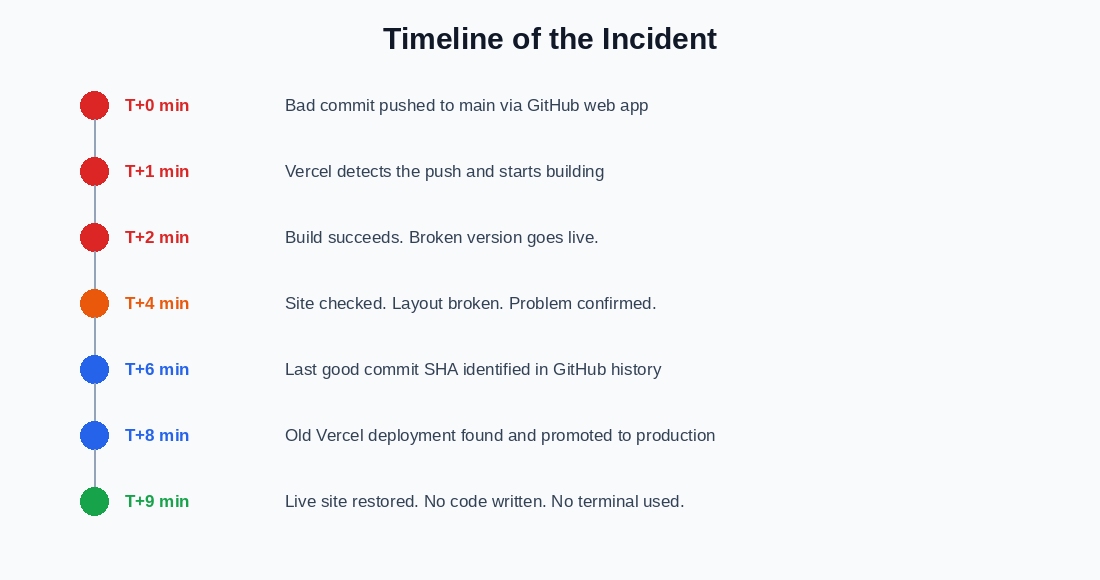
The first thing I did was confirm that the problem was real and not just a caching issue. I opened the site in a private browsing window and saw the same broken layout. The problem was live for anyone visiting the site.
I did not panic, but I did need to move quickly. My immediate priority was getting the live site back to a working state. Fixing the code properly could come after.
I went to my Vercel dashboard and opened the Deployments tab. Vercel lists every deployment it has ever made for your project, with the commit SHA and timestamp next to each one. I could see the most recent deployment, the broken one, at the top of the list. Below it were older deployments, all of them built from code that had been working fine.
I identified the deployment immediately before my bad push, clicked the three-dot menu next to it, and selected “Promote to Production.” Vercel switched the live site to that older build instantly, without triggering a new build. It was already compiled; Vercel just changed which compiled version was being served.
From the moment I noticed the problem to the moment the live site was restored was under nine minutes. The entire process happened in two browser tabs.
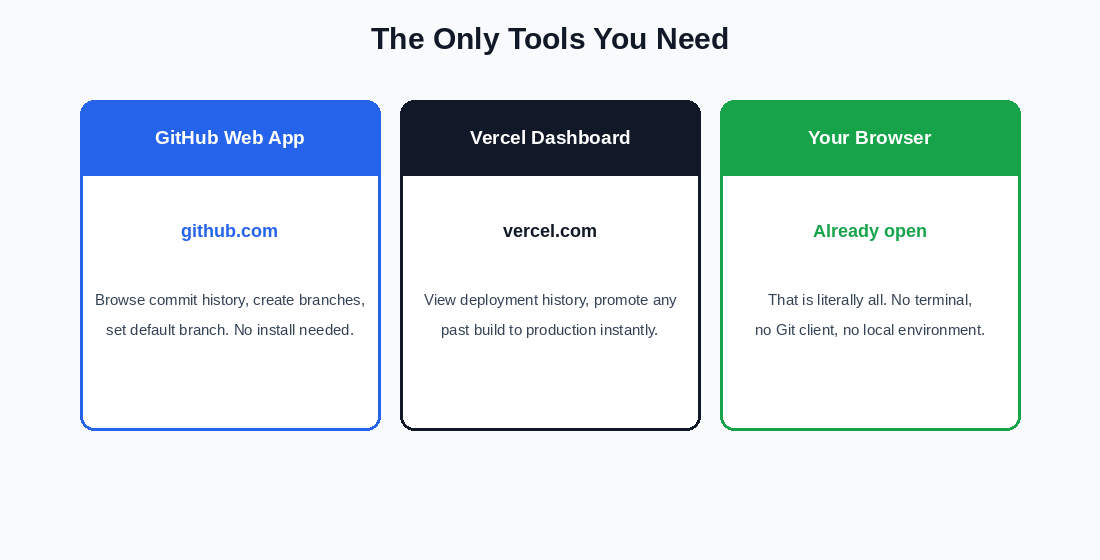
The Two Tools That Made It Possible
1. GitHub Web App
I used this to find my last working commit SHA by browsing my commit history. I also used it later to restore my repository’s code to the working state by creating a new branch from the old commit and setting it as the default branch.
2. Vercel Dashboard
This was the primary recovery tool for the live site. Vercel’s deployment history is the most underappreciated feature in its interface. Every build is preserved, and any of them can be promoted to production in seconds.
I did not open a terminal. I did not use GitHub Desktop. I did not run git reset or git revert or any other Git command. The browser was the entire toolkit.
What I Did After the Site Was Stable
With the live site restored, I turned my attention to the source code in GitHub. The main branch still contained the broken commits. If I or anyone else pushed anything new from that branch, the broken code would go live again.
I found the full SHA of the last working commit in my GitHub commit history. A commit SHA is a 40-character identifier that uniquely marks a specific point in your repository’s history. With that SHA, I could navigate to my repo as it existed at that exact moment.
I went to github.com/adeyemi-adetilewa/repositoryname/tree/c3da89d01d5cc760451c89c7a1fd892689c16fa0, which showed me the entire repository as it was before anything went wrong. From the branch dropdown on that page, I created a new branch calledrestored-main, starting from that exact commit.
In my repository settings, I changed the default branch from main to restored-main. I renamed the old main branch to main-broken so it was out of the way but not deleted. Then I confirmed in Vercel’s project settings that it was still tracking the correct branch name for production deployments.
At that point, both the live site and the source code were in the correct state. The whole thing was done in the browser.
What This Experience Actually Taught Me
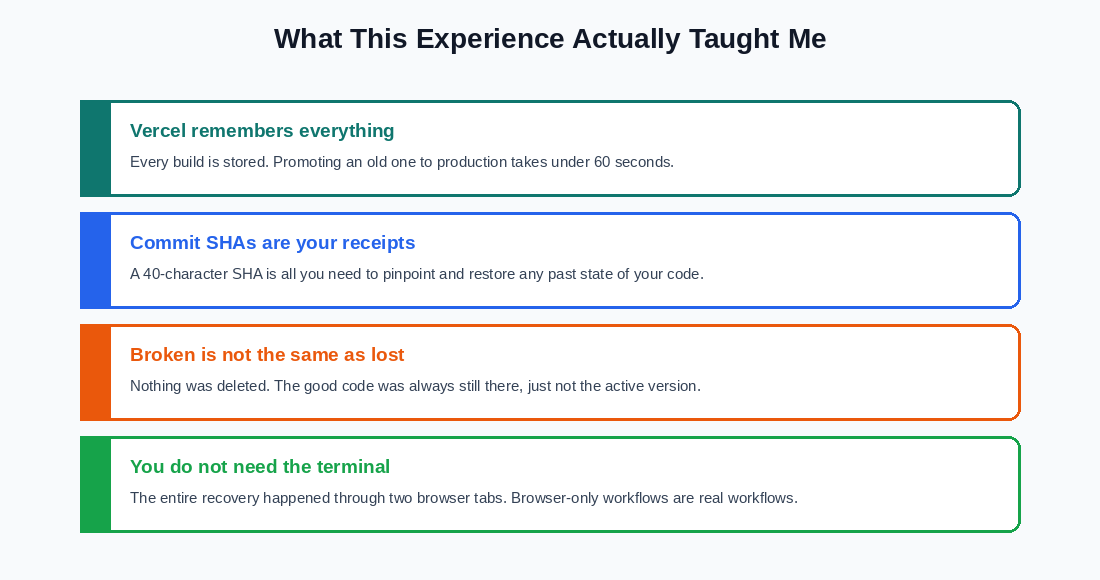
1. Vercel’s deployment history is the most important recovery tool you have.
Every build is kept. Promoting any past build to production is an instantaneous operation.
If your site ever breaks after a deployment, your first move should be the Vercel dashboard, not your code editor. Get the live site stable first, then fix the code at your own pace.
2. A commit SHA is your precise recovery point.
The 40-character identifier next to every commit in your GitHub history is the exact address of a past state of your code. With it, you can browse that state, create a new branch from it, or match it to a specific Vercel deployment.
Knowing how to find and use a commit SHA is genuinely useful, not just a developer concept.
3. Broken is not the same as lost.
Nothing was deleted. The working code was always still in my GitHub repository; it just was not the active version.
The working site was always still in Vercel’s deployment history; it just was not the one being served. Recovery is usually about pointing back at what already exists, not rebuilding anything from scratch.
4. Browser-only workflows are real workflows.
There is a tendency to treat GitHub’s web interface as a lesser option compared to local development and command-line Git.
For many day-to-day operations, including emergency recovery, the web interface is fully capable. I managed a production incident on a live Next.js and headless WordPress site without opening a single application other than my browser.
What I Changed Afterward
The most important change I made after this incident was committing to a staging branch workflow.
Instead of pushing directly to main, I now push to a staging branch first. Vercel creates a preview deployment for staging at a separate URL. I check that preview before merging to main.
This means the live site is never updated until I have personally confirmed the new version works in a real browser.
I also spent ten minutes getting familiar with my commit history and the format of commit SHAs before I needed them again. Knowing where to look for a SHA is much easier when you are calm and not dealing with a broken live site.
TL;DR: I Broke My Live Website and Fixed It Without Writing Code
I broke my live site with a bad GitHub push. I fixed it in under nine minutes using only a browser.
The steps were: identify the last good deployment in Vercel and promote it to production, find the last good commit SHA in GitHub, create a new branch from that commit, and set it as the default.
No code written. No terminal used. No Git commands typed. The tools for this recovery were already built into the platforms I was already using; I just had to know where to find them.
Tags
Share
About the author
Adeyemi Adetilewa
Content Strategy, Product Marketing, and SEO for B2B SaaS
Adeyemi Adetilewa combines expertise in content strategy, product marketing, technical SEO, and AI to help B2B SaaS companies drive product adoption, customer engagement, and sustainable organic growth. Open to remote Product Marketing roles.
Work With Me
Hiring for product marketing, or scaling a B2B SaaS?
I help B2B SaaS companies turn product marketing, content strategy, and technical SEO into systems that drive adoption and organic growth. Open to full-time product marketing roles, contract work, and consulting engagements.
The Digital Strategy Newsletter
Get more like this in your inbox.
Practical insights on SEO, AEO, content strategy, and product building. Free, every week.
Free. View archive. Cancel any time.
Related Content You Might Like

How to Use GitHub Without CLI (Command Line Interface)
Most articles about Git and GitHub assume you have a terminal open and are comfortable typing commands like git reset –hard HEAD~1. If that sentence already lost you, this article on how to use GitHub without CLI is for you. Everything covered here is achievable entirely through the GitHub web interface in your browser: no … Read more
Adeyemi Adetilewa
Content Strategy, Product Marketing, and SEO for B2B SaaS

Website Deployment Failure and Recovery Process for GitHub and Vercel
One bad push to GitHub broke my live website. The build succeeded, Vercel deployed it without complaint, and within minutes adeyemiadetilewa.com was serving a broken layout to every visitor who landed on it. What followed was a website recovery process that took under ten minutes, required no terminal, no Git client, and no local development … Read more
Adeyemi Adetilewa
Content Strategy, Product Marketing, and SEO for B2B SaaS

Why You Should Have a Staging Branch Before Pushing to Main Branch
Pushing to main branch directly without having a staging branch is one of those habits that feels efficient right up until it is not. Your workflow is fast, your changes go live immediately, and there is no friction between writing code and seeing it deployed. Then one day you push something to main branch directly … Read more
Adeyemi Adetilewa
Content Strategy, Product Marketing, and SEO for B2B SaaS